Employees
Add your waiters and chefs and manage their shifts and access.
Read the list
Each row is one staff member with a staff ID (like @tas-zo8a), role, shift type, job type, job title, PIN fails, lock status, phone, and salary. Use the copy icon next to the ID to copy it. Search by name at the top.PIN Fails counts wrong PIN attempts. The Lock column shows whether the person is Unlocked or locked out.Add an employee
Follow these steps to add a new employee.- 1Select Add at the top right.
- 2Enter the Full Name and Phone, with the country code (+251…).
- 3Add a Job Title and Salary if you want. Both are optional.
- 4Choose the Staff Role, Job Type (Full Time or Part Time), and Shift Type (Morning or Afternoon).
- 5Select Create Staff.
Reset a PIN
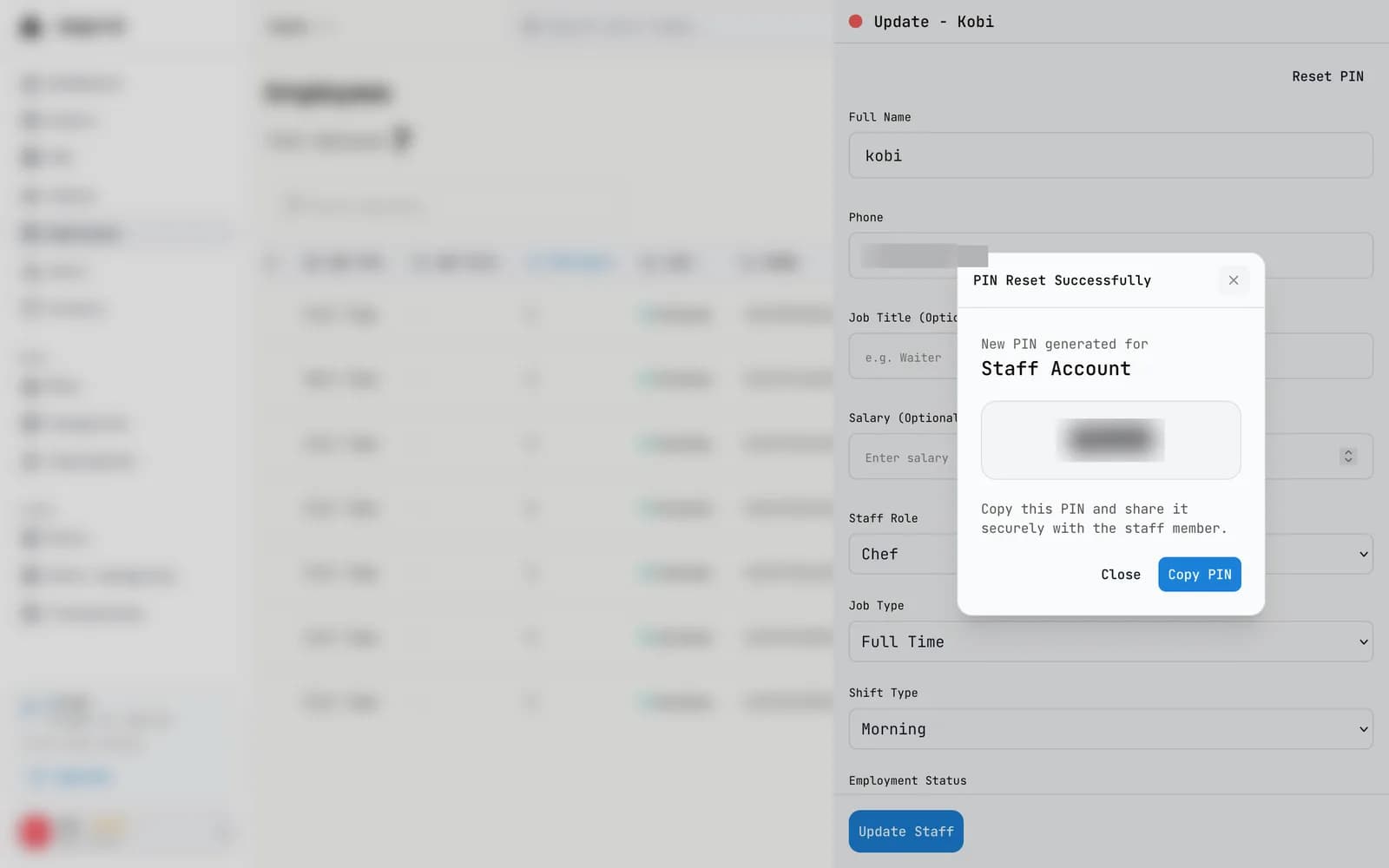
Use this when an employee forgets their PIN. Resetting creates a new PIN for that person.- 1Find the employee in the list. You can search by name.
- 2Select the pencil icon on their row. The panel opens with the title Update and their name.
- 3Check that the name and phone number in the panel belong to the right person.
- 4Select Reset PIN at the top right.
- 5A window shows the new PIN. Select Copy PIN, then Close.
- 6Send the PIN to the employee privately. Do not post it in a group chat.